MailGuard has intercepted a phishing campaign impersonating Microsoft 365, warning recipients that their account access is about to expire.
The email encourages recipients to click a“Verify Access” button to avoid having their login interrupted. Following the link takes the recipient through several redirects and fake verification screens before displaying what appears to be a Microsoft sign-in page.
The attack is designed to steal Microsoft account credentials and potentially authenticated session information, which could give cybercriminals access to compromised Microsoft 365 accounts.
A fake Microsoft 365 access warning
The phishing email uses Microsoft 365 branding and tells recipients that their current access is set to expire that day.
Recipients are encouraged to act quickly, with the email claiming they must proceed to continue with the same access and avoid a login interruption.
A prominent“Verify Access” button is provided.
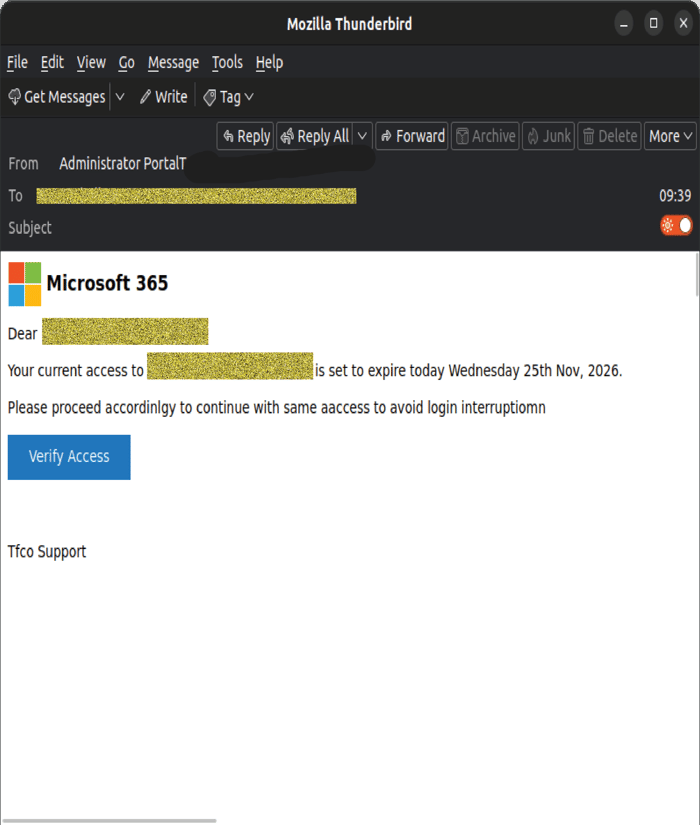
Example phishing content shown using Microsoft 365 branding. Not affiliated with Microsoft.
The fraudulent Microsoft 365 email claims that the recipient's access is due to expire and encourages them to select “Verify Access” to avoid a login interruption.
There are several warning signs within the email.
The display name appears as“Administrator Portal” followed by a random character.
MailGuard has identified 46 variations, with examples including:
- Administrator Portal1
- Administrator Portal4
- Administrator Portalu
- Administrator Portal6
- Administrator PortalQ
- Administrator Portal9
- Administrator PortalA
- Administrator Portalj
- Administrator PortalC
- Administrator PortalD
The email also contains unusual wording and spelling errors. More importantly, the sending domain has no connection to Microsoft.
How the scam works
Step 1: The Verify Access link
Clicking“Verify Access” does not take the recipient directly to Microsoft.
Instead, the link redirects through several unrelated domains.
The observed redirect chain begins with:
67gsf00[dot]3utilities[dot]com/#[recipient address]
It then redirects to:
armantejaratmoghadam[dot]ir/cgi/css/
before reaching:
gmxe3s[dot]studiview[dot]vu/bd0cb56d9086#[recipient address]
The recipient's email address is included in parts of the URL, helping personalise the phishing journey for the individual being targeted.
The use of several redirects also makes the final destination less obvious.
Step 2: A fake human verification check
Rather than immediately asking the recipient to sign in, the first phishing page displays“Just a moment” and asks the user to confirm their browser before continuing.
A“Start check” button appears underneath.
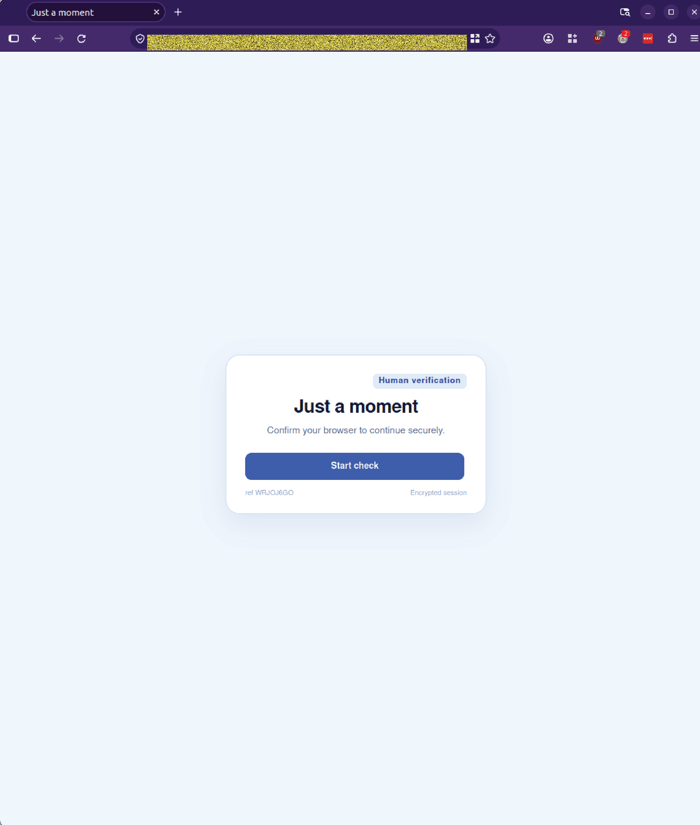
Example phishing content shown using Microsoft-style branding. Not affiliated with Microsoft.
The first phishing page presents a fake “Human verification” check and asks the recipient to select “Start check” before continuing.
The page includes phrases such as“Human verification”,“Encrypted session” and“Confirm your browser to continue securely.”
These messages help make the page look like a routine security check. In reality, clicking the button moves the recipient further into the phishing process.
Step 3: The session is checked
The recipient is then shown another page carrying familiar Microsoft colours and branding.
This page displays:
“Verifying your session”
and:
“Please wait while we check your session”
A second message tells the recipient that the website is“Checking browser integrity...”
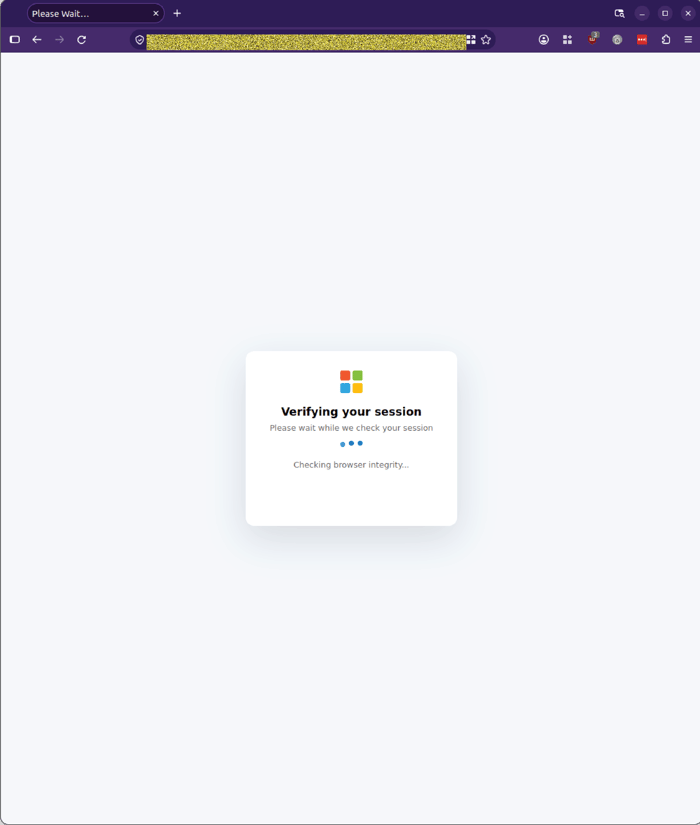
Example phishing content shown using Microsoft branding. Not affiliated with Microsoft.
The fake verification page claims to be checking the recipient's session and browser integrity before progressing to the next stage.
Step 4:The session is “verified”
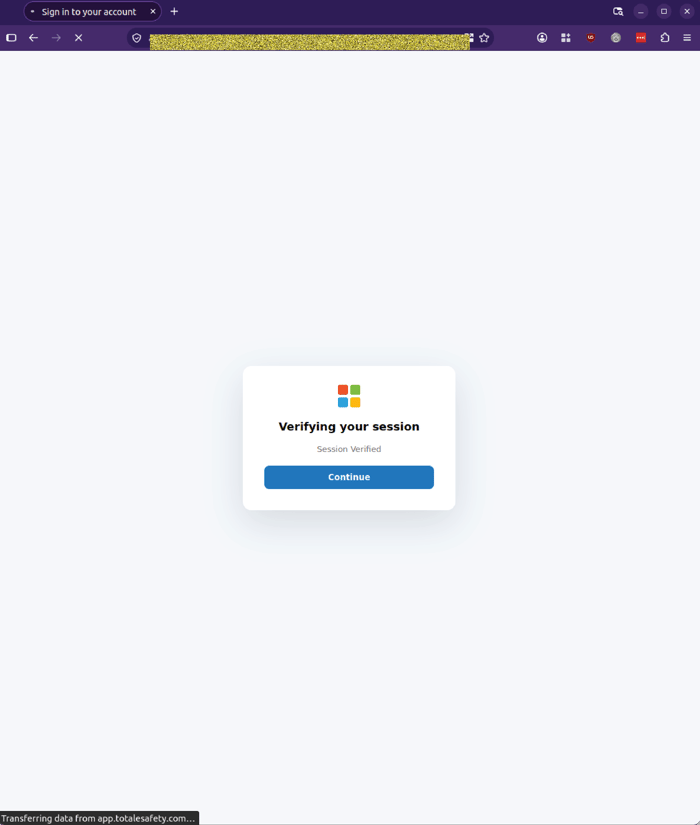
Example phishing content shown using Microsoft branding. Not affiliated with Microsoft.
The phishing page tells the recipient that their session has been verified and prompts them to select “Continue”.
At this point, the phishing sequence redirects to:
app[dot]totalesafety[dot]com/us/ghdjg-uuids#[recipient address]
Despite the Microsoft branding, the website address is not a standard Microsoft authentication domain. This is an important warning sign for recipients checking where the page is actually hosted.
Step 5:The Microsoft sign-in page
After selecting“Continue”, the recipient is presented with a familiar Microsoft authentication screen.
The page offers options including:
- Face, fingerprint, PIN or security key
- Use my password
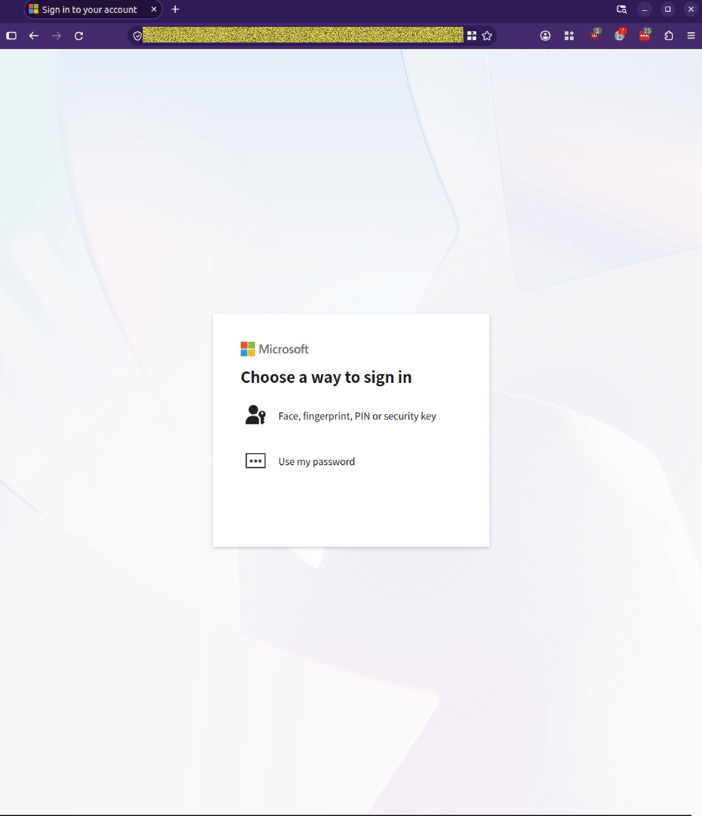
Example authentication content displaying Microsoft branding.
The phishing journey progresses to a Microsoft sign-in experience offering password and passwordless authentication options.
This stage can appear convincing because it follows several verification screens that have already been designed to establish trust.
From the recipient's perspective, the journey started with a Microsoft 365 access warning, progressed through apparent security checks and has now reached a familiar sign-in process.
However, recipients should always pay attention to the browser address rather than relying on logos, colours and familiar authentication prompts.
Step 6: The password request
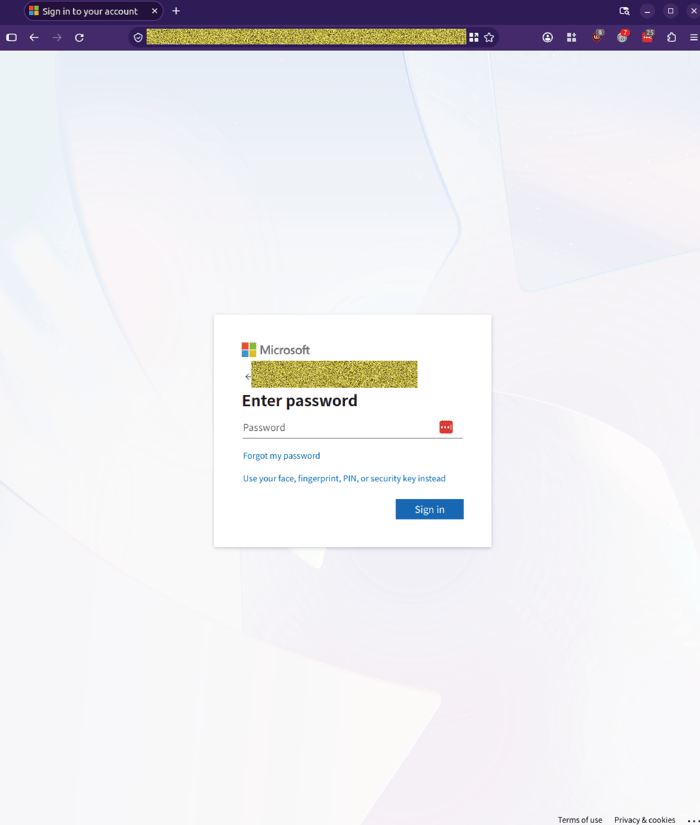
Example Microsoft authentication content reached through the phishing journey.
The authentication process asks the recipient to enter the password associated with their Microsoft account.
This is where the attack becomes particularly concerning.
The campaign is consistent with a reverse-proxy credential-harvesting attack, where malicious infrastructure can operate as an intermediary between the recipient and Microsoft's legitimate authentication service.
Instead of simply displaying a static copy of a Microsoft login page, a reverse proxy can pass authentication requests between the recipient and the genuine service.
This may enable attackers to capture credentials and potentially authenticated session information during the sign-in process.
If authenticated session information is successfully stolen, an attacker may be able to reuse that session, depending on the security controls protecting the account.
For businesses, that means a single successful phishing attempt could potentially expose more than one employee's inbox. A compromised Microsoft 365 account may provide access to sensitive business information and could subsequently be used to target colleagues, customers or suppliers through further phishing or business email compromise attacks.
What to watch out for
- Unexpected access warnings. Be cautious of emails claiming that Microsoft 365 access is about to expire and requiring immediate action.
- Unfamiliar sending domains. This campaign is sent by someone other than Microsoft.
- Changing display names. MailGuard has identified numerous versions of the “Administrator Portal” display name.
- Spelling and grammatical mistakes. The initial email contains awkward wording and spelling errors.
- Multiple redirects. The link moves through several unrelated domains before reaching the authentication process.
- Fake security checks. “Human verification”, browser integrity and session verification messages do not prove a website is legitimate.
- Microsoft branding on unrelated domains. Logos and familiar authentication screens should not be treated as proof that a page belongs to Microsoft.
- Unexpected login requests. Avoid entering credentials after following a link from an unexpected email.
Indicators for security teams
Display name: Administrator Portal[random character]
Threat type: Phishing
Observed phishing and redirect infrastructure:
67gsf00[dot]3utilities[dot]com
armantejaratmoghadam[dot]ir
gmxe3s[dot]studiview[dot]vu
app[dot]totalesafety[dot]com
Attack objective: Microsoft account credentials and potential authenticated session information
Stay Safe, Know the Signs
MailGuard advises all recipients of these emails to delete them immediately without clicking on any links. Responding or providing your personal details can result in your sensitive information being used for criminal activity and may have a severe negative impact on your business and its’ financial well-being.
MailGuard urges users not to click links or open attachments within emails that:
- Are not addressed to you by name.
- Appear to be from a legitimate company but use poor English or omits personal details that a legitimate sender would include.
- Are from businesses that you were not expecting to hear from, and/or
- Take you to a landing page or website that is not the legitimate URL of the company the email is purporting to be sent from.
- Many businesses turn to MailGuard after an incident or a near miss, often as a result of an email similar to the one shown above. If unwanted emails are a problem for your business, don’t wait until it’s too late.
Reach out to our team for a confidential discussion by emailing expert@mailguard.com.au or calling 1300 30 44 30.
One Email Is All That It Takes
All that it takes to devastate your business is a cleverly worded email message that can steal sensitive user credentials or disrupt your business operations. If scammers can trick one person in your company into clicking on a malicious link or attachment, they can gain access to your data or inflict damage on your business.
For a few dollars per staff member per month, you can protect your business with MailGuard's specialist AI-powered, zero-day email security. Special Ops for when speed matters! Our real-time zero-day, email threat detection amplifies our client’s intelligence, knowledge, security and defence. Talk to a solution consultant at MailGuard today about securing your company's inboxes.
Stay up-to-date with MailGuard's latest blog posts by subscribing to free updates. Subscribe to weekly updates by clicking on the button below.